|
Each data set contained in the XVSAM system can be easily processed by using the EDIT FILE feature. In this case you should enter function - 5 - Edit File in the selection field. The map shown in the next figure will then be displayed.
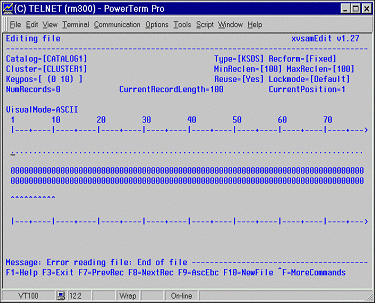
The Editing file panel is split into three parts: on the first five upper lines of the map, the relevant information about the file are listed:
| • | Key position and key length |
| • | XVSAM organization: KSDS - ESDS - RRDS |
| • | Minimum and maximum record length |
| • | Number of records contained in the data set |
In the middle part of the map, the content of each record both in character and in hexadecimal format is shown, while the third one, located in the lower part of the screen contains the message line and information about the usage of available function keys.
Two viewing modes are possible: ASCII or EBCDIC. The actual value is displayed, but it can be toggled from one to the other through pushing the F9 (or Ctrl+A) key. This will only affect the display of the records as UNIX works in ASCII.
The cursor is positioned at the beginning of the record. Through using the right and left arrow keys, you can move it within the record and overwrite one or more characters on it. Both the content of a record or its key can be modified.
The third part of the screen provides information about the usage of the keys:
| • | Cursor keys to move among fields |
| • | F1 (or Ctrl+K) to invoke the on-line help |
| • | F3 (or Ctrl+E) to go back to the main menu |
| • | F5 (or Ctrl+B) to search the next occurrence of a pattern |
| • | F7 (or Ctrl+P) to read previous record |
| • | F8 (or Ctrl+N) to read next record |
| • | F9 (or Ctrl+A) to switch view mode ASCII/EBCDIC |
| • | F10 (or Ctrl+X) to select a new file |
| • | CTRL + F to activate the advanced function menu |
The advanced processing features, made available by CTRL+F, can be used to execute the following input-output operations on the current record:
| • | s to start a browsing (sequential read) operation from the current record |
| • | r to read a record directly |
| • | w to write the current record |
| • | d to delete the current record |
| • | o to read the current record with lock |
| • | u to rewrite the current record |
| • | n to release lock on the current record |
| • | f to read the first record in the file |
| • | l to read the last record in the file |
| • | e to refresh the screen (all the field contents are initialized to binary zeroes) |
| • | x to define a search pattern |
| • | c to change the record length (for a variable length files) |
| • | k to change the record key (RBA for ESDS data sets, RRN for RRDS data sets) |
Please consider that some features as i.e. a browsing operation or the direct reading of a record - with or without lock - need a key field to be supplied. Positioning on the first or last record of a file does not require any key.
If you want to insert a new record in a data set by means of the WRITE (w) feature, you have to supply one of the following Record Identification Fields:
| • | Primary Record Key: in case of KSDS data sets the new record will be inserted, if not already existing, in a position determined by its primary key. |
| • | Relative Record Number: in case of RRDS files, the new record will be inserted, if not already existing in the position corresponding to the supplied RRN. |
| • | Relative Byte Address: in case of ESDS data sets the new record will always be added at the end of the data set. |
If otherwise, you intend to rewrite an already existing record, you should first read it with lock and after having modified the content of one or more fields - but not the primary key - you can proceed with updating it by means of the u (rewrite) feature.
Record deletion can be done directly, that’s to say that it is not necessary to read previously the record with lock before entering the d (delete) command code.
| 

