xcicsd (Windows)


|
xcicsd (Windows) |
|
|
On Windows, an XCICS region can be managed using xcicsd, which allow to:
xcicsd is not available on Unix/Linux systems. Syntax xcicsd [options] -f <configuration_file> Options
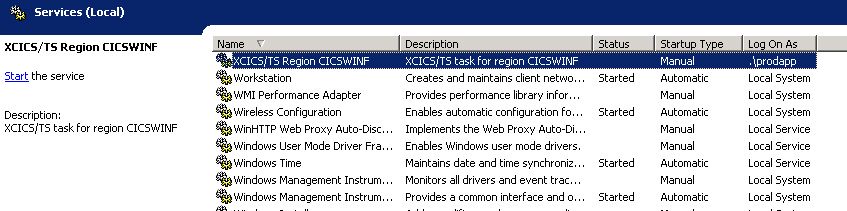
Installing a region as system service On the Windows operating system, XCICS/TS regions operate as system services. Each region must be installed as a separate service, belonging to the appropriate application environment, and it should be run as the system user who owns the application, or as an user having the privileges to access the application components (files, logs, programs, etc.). The user executing the XCICS region service must have the rights to "Log on as service". To install the region service, you must have administrative rights (i.e. Administrator), and you have to issue xcicsd providing the --install option and supplying:
The region name (application_name in xcics.conf) will be used as service name. Remember that xcicsd requires the PATH to be correctly set to locate all the DLLs it requires. Sometimes it may happen that the user you use to install the service (i.e. Administrator) has not been configured to use the XFRAME tools. In this situation please set the PATH according to what specified in the Application Environment Setup. I..e c:\Program Files\HTWC\XFRAME\bin> xcicsd --install --user WINSRV01\prodapp --password mypass -f c:\prodapp\etc\xcics.conf By default the region is installed to be started on demand. To start it automatically you must change the settings in the Windows Services control panel.
Starting the region service To start the region service, you may use the Windows service control panel, or the command NET START, followed by the service name. I.e. C:\prodapp> NET START CICSWINF Stopping the region service To perform a clean shutdown of the region service, you should use the xcicsadm command, which activates the clean shutdown procedure for the region (see xcicsadm). i.e. c:\prodapp> xcicsadm -Si Only if you need a quick and dirty shutdown of the region, you may use the Windows service control panel, or the command NET STOP, followed by the service name. I.e. C:\prodapp> NET STOP CICSWINF Removing a region as system service To remove the region service, you must have administrative rights (i.e. Administrator), and you have to issue xcicsd providing the --remove option and supplying the region configuration file. Remember that your region service has been named with the name of the region, therefore make sure you still have the same name in the region configuration. I.e.: c:\Program Files\HTWC\XFRAME\bin> xcicsd --remove -f c:\prodapp\etc\xcics.conf Running the region in console mode The region may be also run in console mode, therefore directly from a DOS command prompt. This interactive execution mode is useful whenever you need to bring a the session for testing purposes or when you want to start the region with specific options (i.e. warm-start). To start the region interactively, you have to run xcicsd using the option -c, like in this example C:\prodapp>xcicsd -c -f c:\prodapp\etc\xcics.conf --warm-start |