XBM Remote Console


|
XBM Remote Console |
|
|
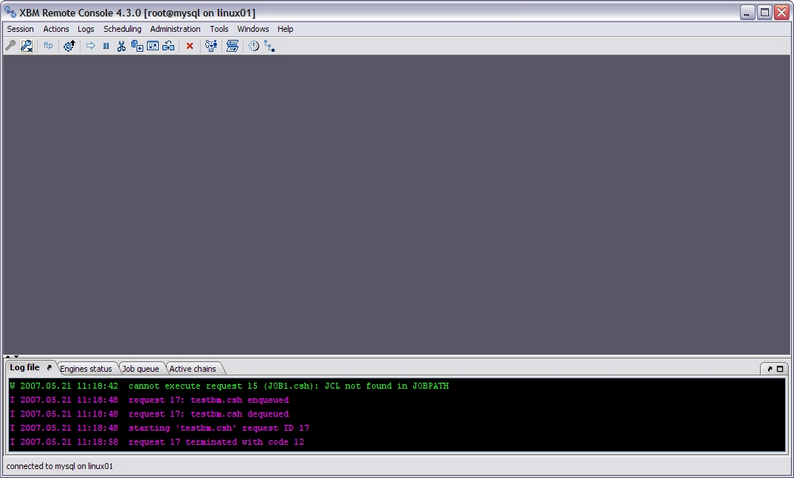
In order to provide an easy access to XBM resources a GUI based remote console has been provided. The remote console is pure Java coding, therefore it cam be run on each system supporting the Java platform. To start XBM Remote Console just start the icon on your desktop for Windows systems, or type xbmcw for UNIX/Linux systems.
All the functions available in the remote console can be accessed trough the menu bar. The toolbar offers a shortcut for some of the most frequently used functions: a tooltip will explain the function for the selected icon. The monitors window At the bottom of the XBM Remote Console window, there is a tabbed area that contains some views to monitor the most important aspects of the connected XBM instance. Log file The log windows shows the central console log, since connected.
Each log entry is identified by
Different colors identify different message level:
The log window may be cleaned up using the appropriate menu item. Engine Status The engine status area show information about the status of the engines.
For each engine the following information are shown:
Selecting a row and clicking right mouse button a popup menu is popped up offering the available choices for the selected resource. Job queue In the job queue the pending requests are shown:
The following information are available:
By selecting a row and clicking right mouse button a popup menu is popped up offering the available choices for the selected resource. Active chains The active chains windows shows the chains running at the moment. By right clicking mouse a monitor may be activated. The options dialog Through this dialog it is possible to configure the XBM remote console. Configurable parameter are:
The options set will be activate the next time remote console starts. |