Windows


|
Windows |
|
|
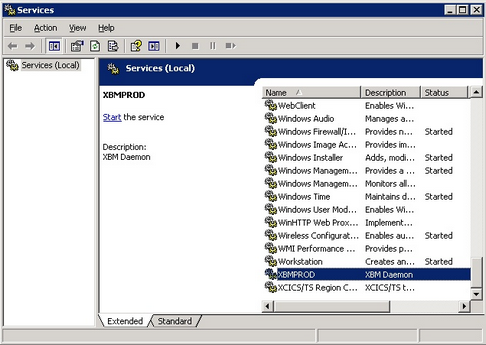
On Windows systems, XBM daemon must be installed as Windows service and run as the user who will hold the XBM resources. To install/uninstall the service you have to use the xbmd command. If properly configured, more than one instances of XBM can be run on a single system. Usage xbmd [options] Options --install <name> installs the services with the supplied name --uninstall <name> installs the services with the supplied name Installing the service To install XBM as service, you must logon with administrative rights (i.e. Administrator), and execute xbmd with option --install. The --install option accepts an optional parameter which is the name of the service to be installed. We suggest to provide always this name, even if only one XBM instance is going to be installed on the system. This name will be also used by the XBM daemon to retrieve its configuration file. C:\Program Files\HTWC\XBM-4.3.0\bin>xbmd --install XBMPROD xbmd installs the service as system account. Now you must change the logon information for the service, altering the name and the password of the execution user. From the "Services" control panel, locate the service just installed:
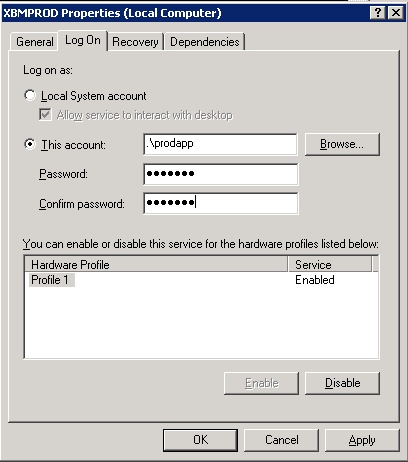
and edit its properties, changing the logon user, from the "Log on" tab:
The new user assigned is the one the holds the working instance, and it is normally the same user referenced as the one who owns an XFRAME Application Environment. Then create a valid XBM configuration file, and save it as <SERVICENAME>.conf in the HOME directory of the user above. I.e. C:\prodapp\XBMPROD.conf Uninstalling the service To remove the service, logon with administrative rights, and use xbmd --uninstall followed by the name of the service to uninstall. I.e.: C:\Program Files\HTWC\XBM-4.3.0\bin>xbmd --uninstall XBMPROD Starting the service The service may be started from the windows service control panel, or using the command NET START, followed by the service name. I.e: C:\> net start XBMPROD The XBM service normally stores its messages in the console log file and in the trace file as specified in the configuration. Additionally, to diagnose startup problems, a special log file is created in the XBM setup folder: xbmd-service.log. Whenever the service refuses to start and no console or trace logs are created, this fail reports startup information, which may help to solve the problem. Stopping the service The service may be stopped from the windows service control panel, or using the command NET STOP, followed by the service name. I.e: C:\> net stop XBMPROD Otherwise, XBM operators with administrative rights, may issue a shutdown command, from the command line (xbmc) or from the XBM Remote Console. I.e: C:\> xbmc shutdown -yi |