User Interface


|
User Interface |
|
|
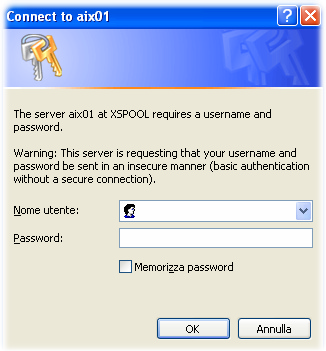
To connect to the XSPOOL web application, enter the URL in your browser: i.e. http://aix01.ht.net:8081/xspool The browser will ask for username and password.
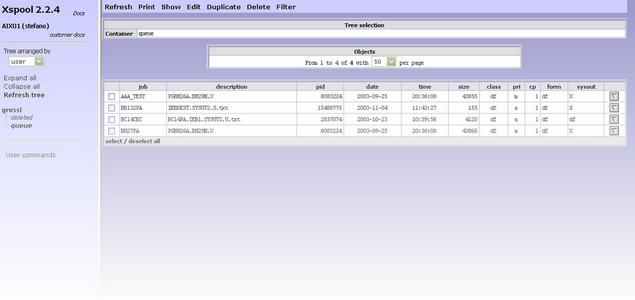
It necessary remind that every user must be configured on xspool.conf and tomcat-users.xml files (for more information refer to Configuration) Application objects The main screen of the application is composed by two frames: Navigation frame This area is positioned at the left hand of page and contains different items depending on the user profile. Data frame This area is positioned at the right hand of page and shows the different working pages of the application.
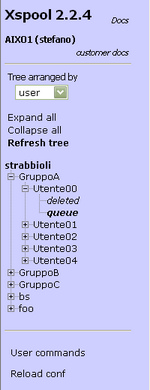
Navigation area This area contains the command and the tree representation of the spool repository which is accessible by the user. Administrator users may see all the repository.
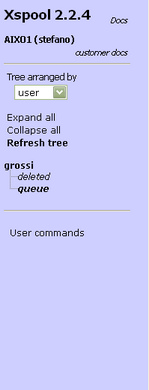
A simple user, can only see own directories (queue and deleted).
By default, the tree structure is suit by user. It can be change using the appropriate pop up menu.
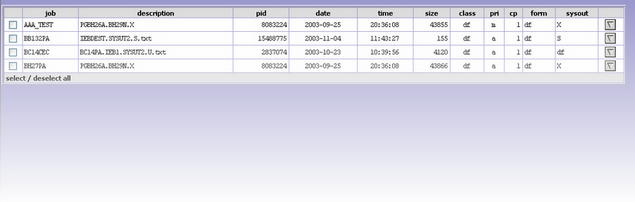
The lowest level of the structure is composed from queue and deleted that are the real containers of the objects. The queue directory contains files that user added on XSPOOL repository while the deleted directory contains files that user deleted in temporary mode. When the user click on one of these directories, the data area shows the corresponding list of items with their characteristic.
In order to organized tree structure there are three function. The command Expand All visualizes the entire tree structure. All directories and sub-directories are shown. The command Collapse All visualizes only the directories at highest level. The command Refresh tree reloads the tree structure. The User commands function loads the appropriate page to launch the executable programs defined into xspool.conf (for more details refer to User Commands ). Moreover the administrator (root user) can dynamically reload the XSPOOL configuration (xspool.conf) using the button at the bottom of the tree. Data frame This area, situated on the right hand of the page, contains the list of print files contained in the directory selected on tree area. For each file the following attributes are shown:
The number and the content of these columns may changes in function of the organization type applied to the tree.
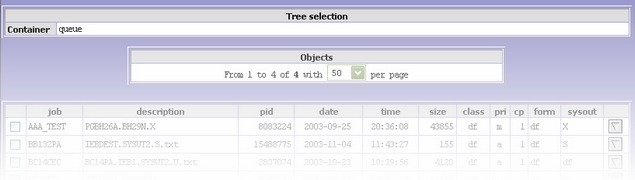
At the top of data area there are the following two windows : The object box supplies information about the number of objects in the selection and allows the navigation among the pages.
At the top of the page, there is menu of available functions. These functions change depending on the selected container or area of work. if "queue" directory is selected the following functions are available:
If "deleted" directory is selected the following functions are available:
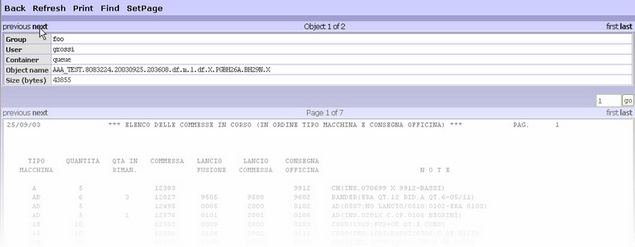
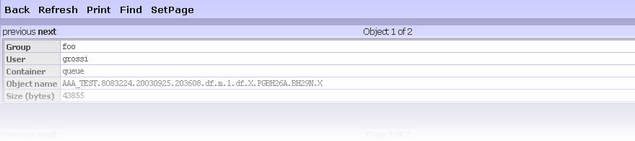
Except Refresh, all the functions demand the selection at least an object: such selection is obtained marking the case to the beginning of every line of the list. Show Function The show function displays the content of the objects. This page shows the name and location of the selected object and the its content. If more than one object are selected, over the name area, the navigation line appears to allows the access to the following file.
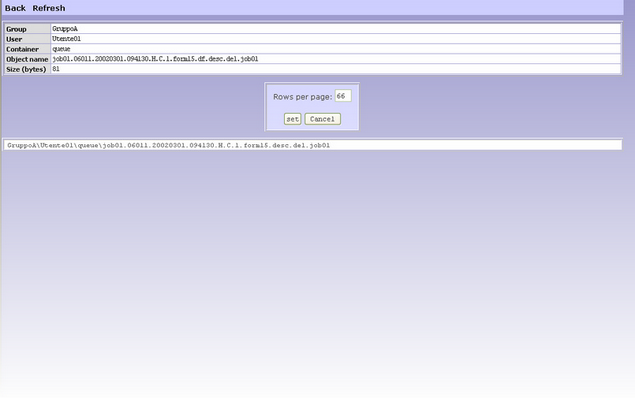
The number of rows displayed depends on the values set trough the SetPage function
If there are more pages, the navigation line appears and allows the access to the following page. The content of file is formatted depending on the "Row per Page" defined and the page interruptions present in the text (new line and page break characters) The following functions are available on the top menu:
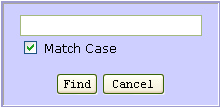
The Find function shows a box to enter the string to be searched.
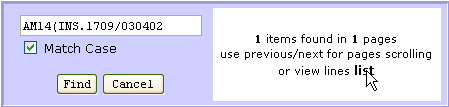
If the string is found, the page will show the search results.
The results may be navigated with "previous" and "next" or listed clicking on "list". The result occurrence are highlighted in the text.
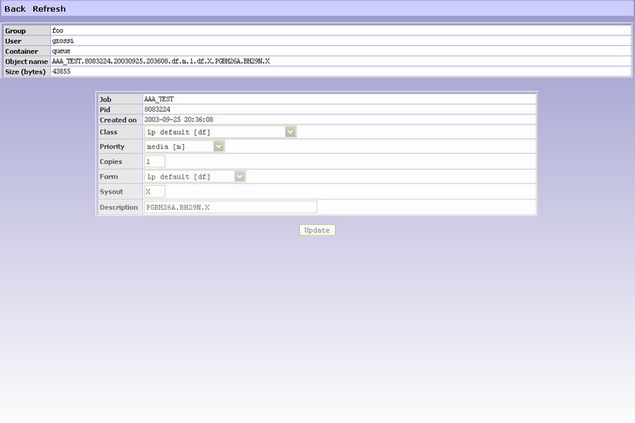
Edit attributes The Edit function allows the modification of the file's attribute.
The Update button applies the request changes. When more than one object is selected, the navigation bar appear to move among the selected items. The menu contains:
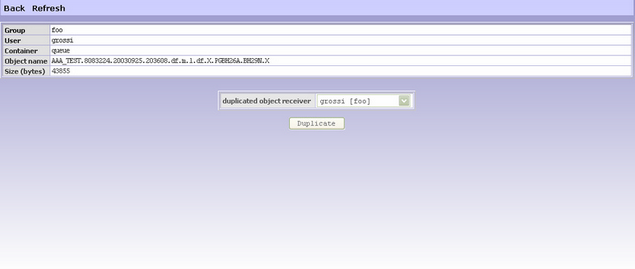
Duplicate objects The duplicate function loads allows to create a copy of the object in another container.
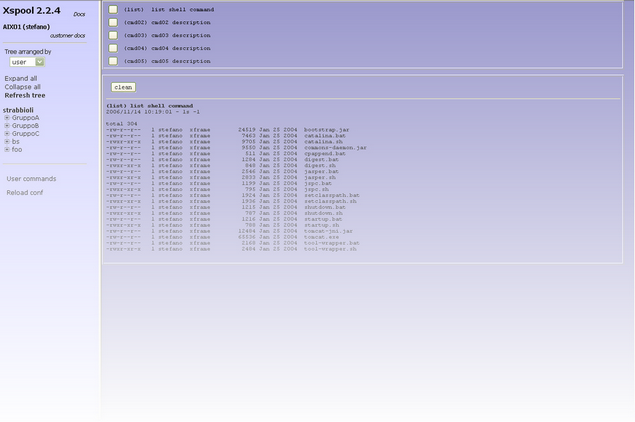
The Duplicate button executes the duplication. User Commands This functions shows the User Commands available for the current user, accordingly with the definitions provided in xspool.conf. For each command a button is shown. When the users pushes a button the corresponding command is activated on the server, and its execution output is displayed in lower side of the page.
|