Installing with OpenCOBOL


|
Installing with OpenCOBOL |
|
|
OpenCOBOL is an open source COBOL compiler (http://www.opencobol.org). It is not a part of XFRAME and it is not an HTWC product. This section will guide you to build, install and integrate OpenCOBOL with XFRAME. This guide is not a replacement for OpenCOBOL documentation. Unlike other COBOL compilers supported by XFRAME, OpenCOBOL must be installed and built only after XFRAME has been setup and configured to use OpenCOBOL. Remember that OpenCOBOL requires GNU MP (libgmp) 4.1.2 or later (http://gmplib.org) therefore your system must be equipped with that library. Don't forget to read the OpenCOBOL READMEs and all its related documentation. For all systems OpenCOBOL must be built enabling its EXTFH interface and linking it to the XFRAME libraries. On HTWC's web site (http://www.htwc.com/opencobol) you may find the latest OpenCOBOL version tested with XFRAME. There is no guarantee that the version published htwc.com is the latest released by OpenCOBOL.org. OpenCOBOL has been tested with XFRAME on the following systems:
Installing on Linux Download OpenCOBOL 1.0 or higher from OpenCOBOL web site, or from HTWC website. Uncompress the tarball, configure and build it. OpenCOBOL must be configured providing the following parameters to the configure utility, before to build it:
Example # ./configure --prefix=/opt/opencobol-1.0/32 --with-index-extfh --with-seqra-extfh LDFLAGS="-ldl -L$XFRAMEHOME/lib -locextfh -lopencobol" Once built and installed, the OPENCOBOL_HOME environment variable must be set to the installation path of OpenCOBOL and exported, and its bin and lib subdirectories must be added respectively to PATH and LD_LIBRARY_PATH of the users than will use XFRAME and OpenCOBOL. Example export OPENCOBOL_HOME=/opt/opencobol-1.0/32 Installing on UNIX On UNIX systems, in order to cooperate with XFRAME, OpenCOBOL must be built using the system's native C compiler, and not using GCC. This will also provide better performance for COBOL programs. The instruction vary depending on UNIX flavour: following the instruction where we tested OpenCOBOL with XFRAME. IBM AIX 5.3 Before to build OpenCOBOL, you must build GMP. Download it from gmplib.org and build it. I.e. # ./configure --prefix=/opt/gmp-4.2.2/32 Then download OpenCOBOL 1.0 or higher from OpenCOBOL web site, or from HTWC website. Uncompress the tarball and configure it. OpenCOBOL must be configured providing the following parameters to the configure utility:
Once configure build as usual. Example # ./configure --prefix=/opt/opencobol-1.0/32 \ Sun Solaris (SPARC) Before to build OpenCOBOL, you must build GMP. Download it from gmplib.org and build it. I.e. # ./configure --prefix=/opt/gmp-4.2.2/32 Then download OpenCOBOL 1.0 or higher from OpenCOBOL web site, or from HTWC website. Uncompress the tarball and configure it. OpenCOBOL must be configured providing the following parameters to the configure utility:
and the LD_LIBRARY_PATH must include the GMP library path. Once configured build as usual. Example # export LD_LIBRARY_PATH=/opt/gmp-4.2.2/32/lib:$LD_LIBRARY_PATH Installing on Windows To compile under Windows, you need Microsoft C SDK or Microsoft VisualStudio 2005. Do not use GCC, CYGWIN or MINGW to compile OpenCOBOL if you want to use it with XFRAME. Then download OpenCOBOL 1.0 or higher from OpenCOBOL web site, or from HTWC website. Then download the file winbuild.zip from HTWC's website (http://www.htwc.com/opencobol), extract the content of the ZIP file over the OpenCOBOL source directory. Note: you must extract the zip OVER the directory and not into: this means you have to see the file configure.pl in the OpenCOBOL sources root directory. Open a Microsoft VisualStudio command prompt (or a prompt with the MS C compilers correctly configured) and change directory to the OpenCOBOL sources root. Configure OpenCOBOL with the command "perl configure.pl" and provide the following settings:
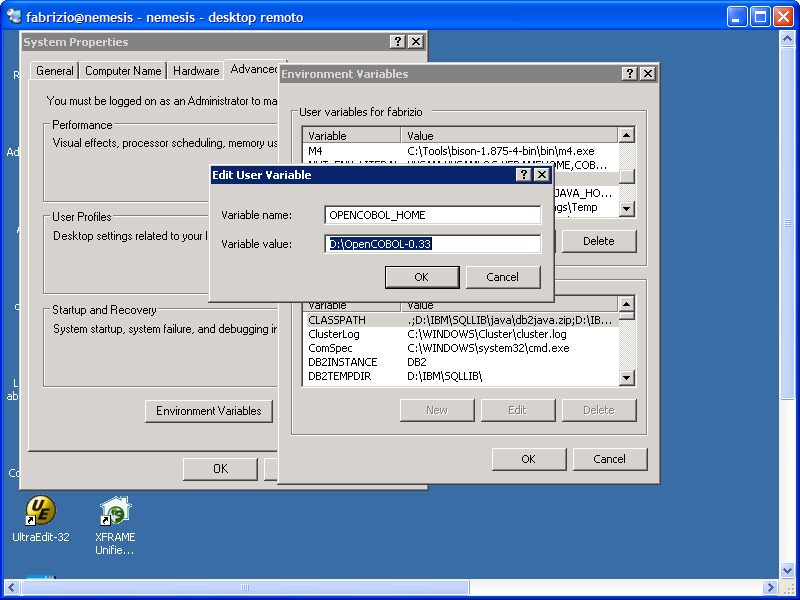
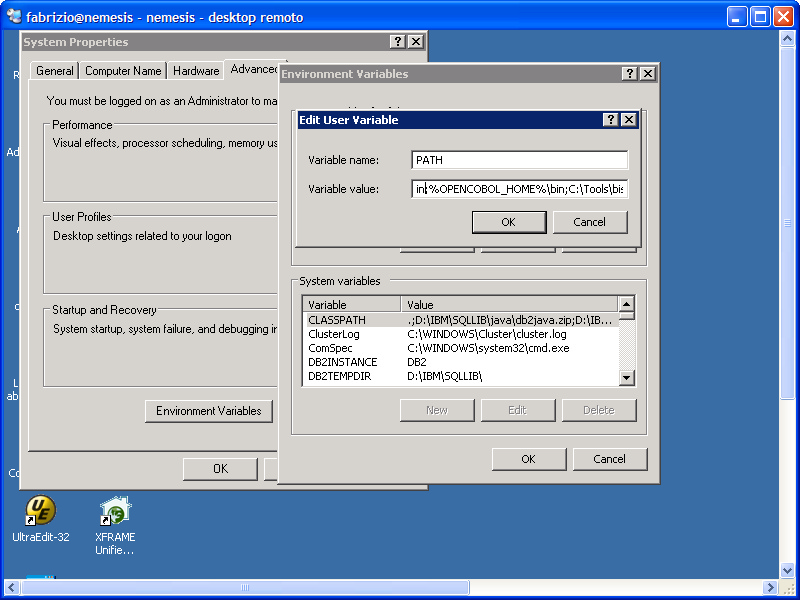
Then built it issuing "nmake -f make.nmake" and install it with "nmake -f make.nmake setup". Once built define the OPENCOBOL_HOME environment variable and add %OPENCOBOL_HOME%\bin to the PATH. Example C:\> cd \sources\opencobol-1.0 Then set OPENCOBOL_HOME and PATH properly. I.e.
|